iOS Shortcut
Convert your tickets and documents to Apple Wallet passes directly from your iPhone.
Download iOS Shortcut
Get the shortcut and start converting tickets to Apple Wallet passes instantly.
Opens in the Shortcuts app on your iPhone
How to Use the Shortcut
Add the Shortcut
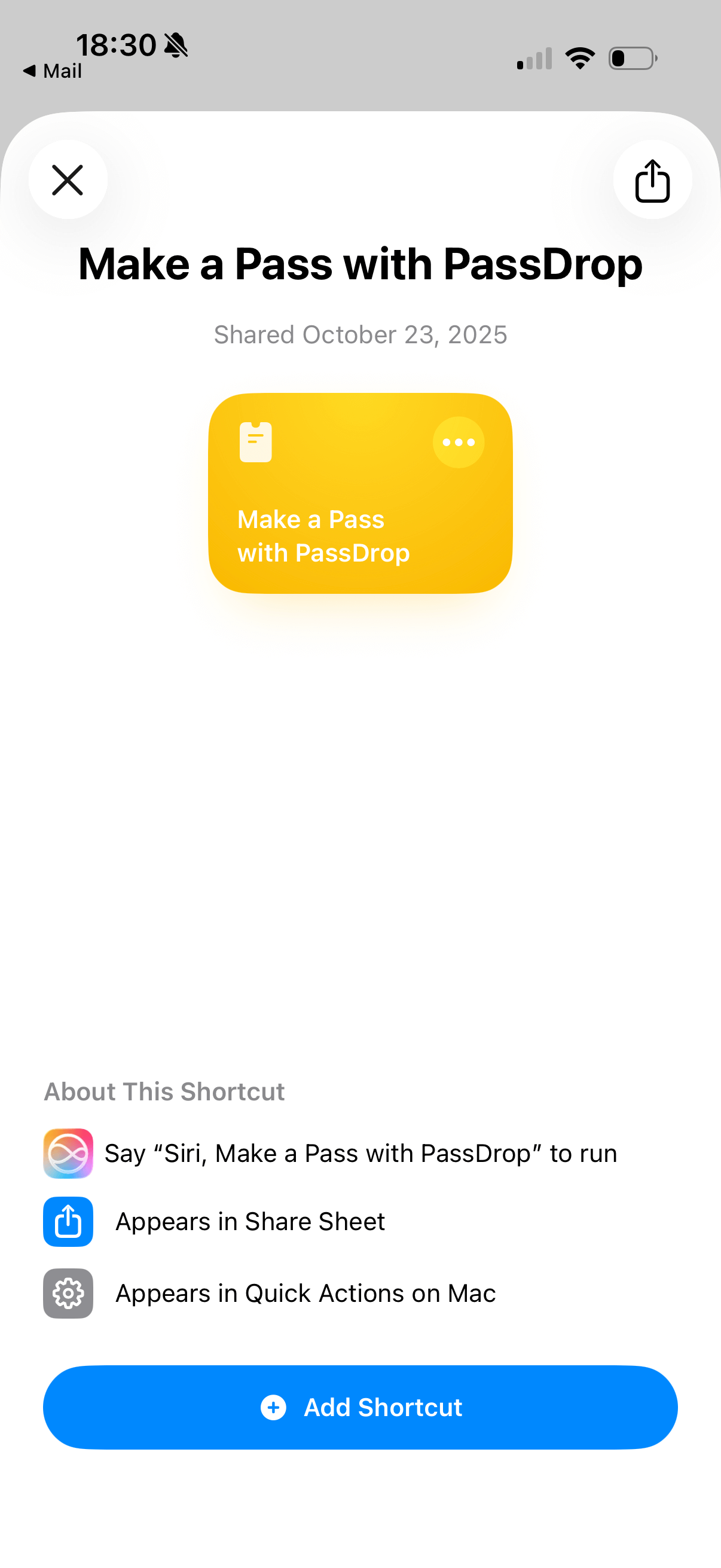
When you download the shortcut, it will open in the Shortcuts app. Tap the "Add Shortcut" button to install it to your device.
Shortcut Installed
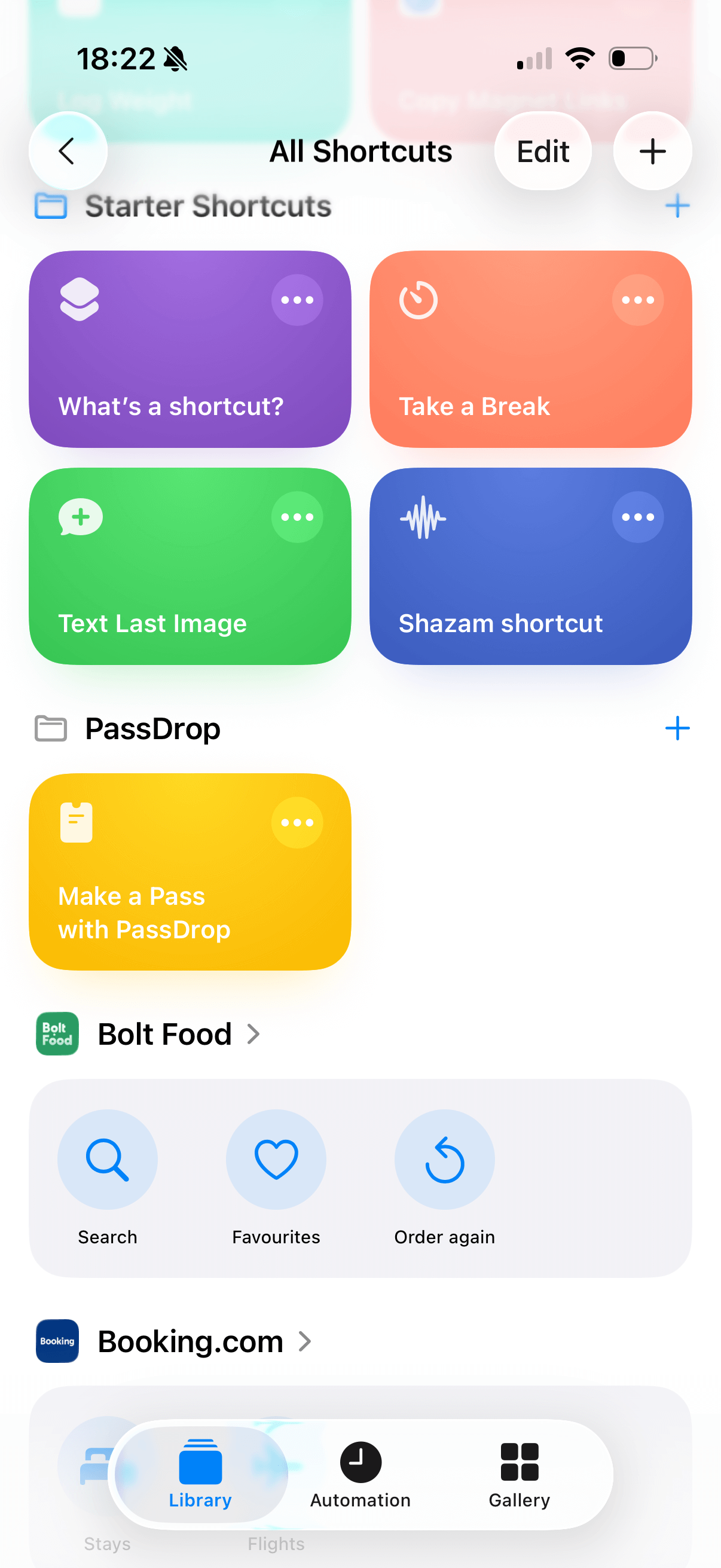
The shortcut will now appear in your Shortcuts app library. You can see it's ready to use.
Add to Home Screen
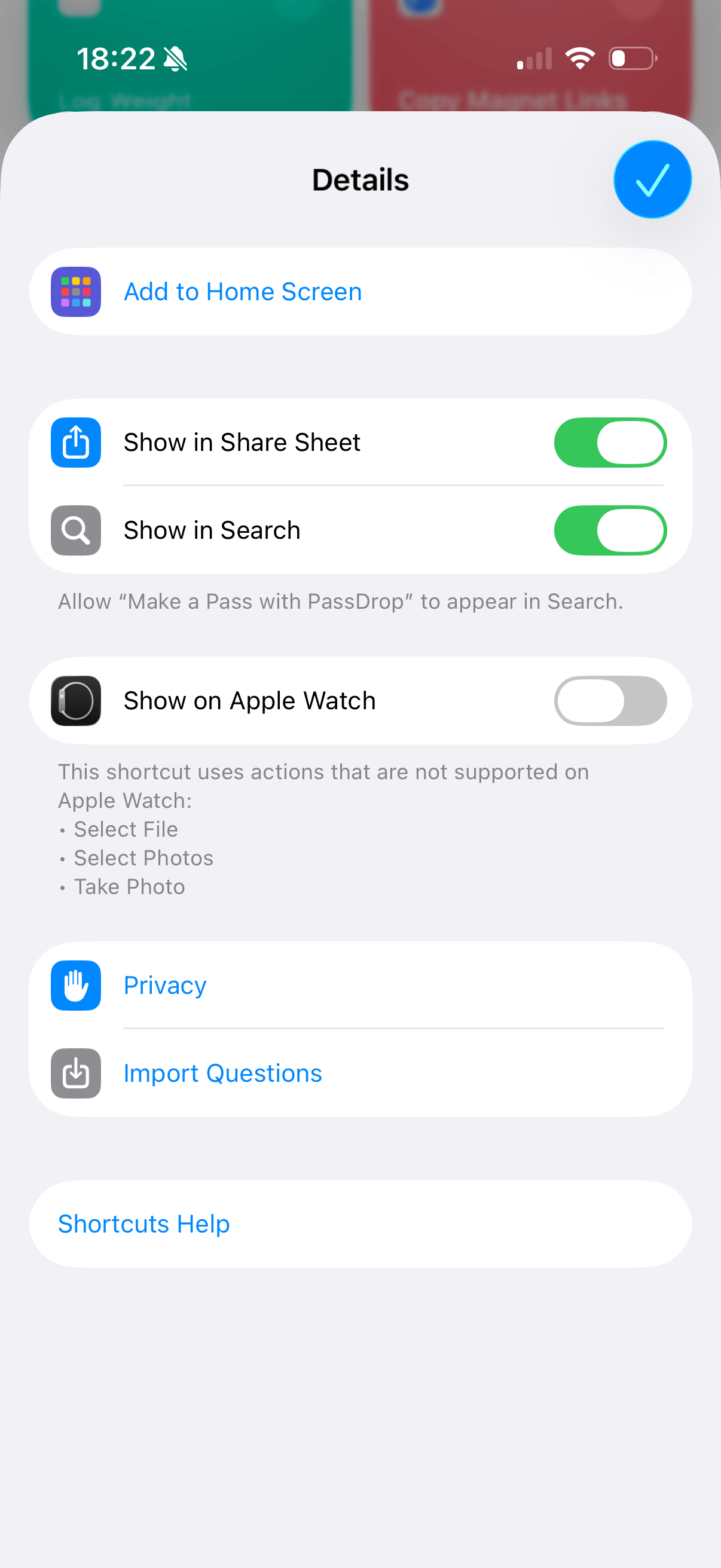
Long-press the shortcut to access its details page. Tap "Add to Home Screen" to create a quick access icon on your home screen.
Home Screen Access
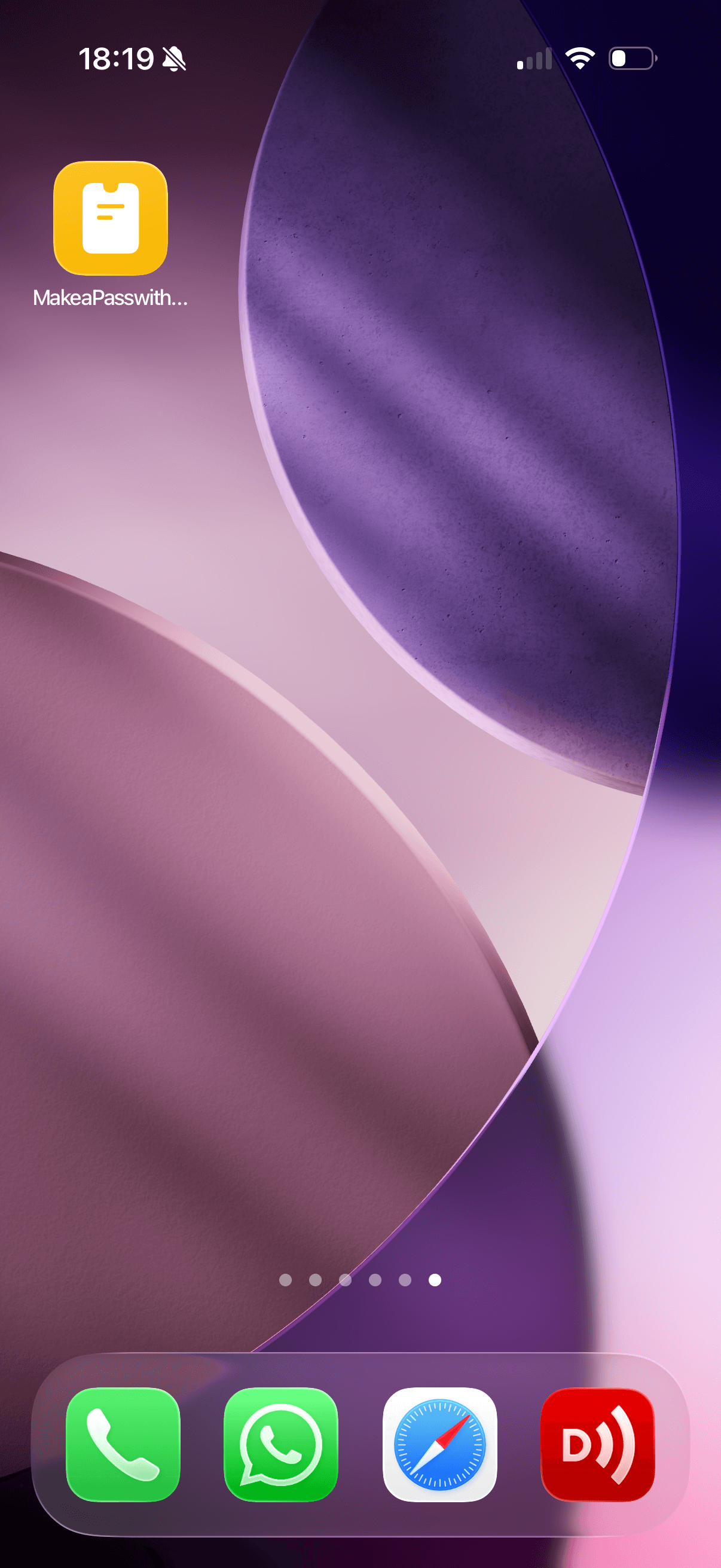
The shortcut now appears as an icon on your home screen for easy access. Tap it whenever you want to convert a ticket.
Choose Input Method
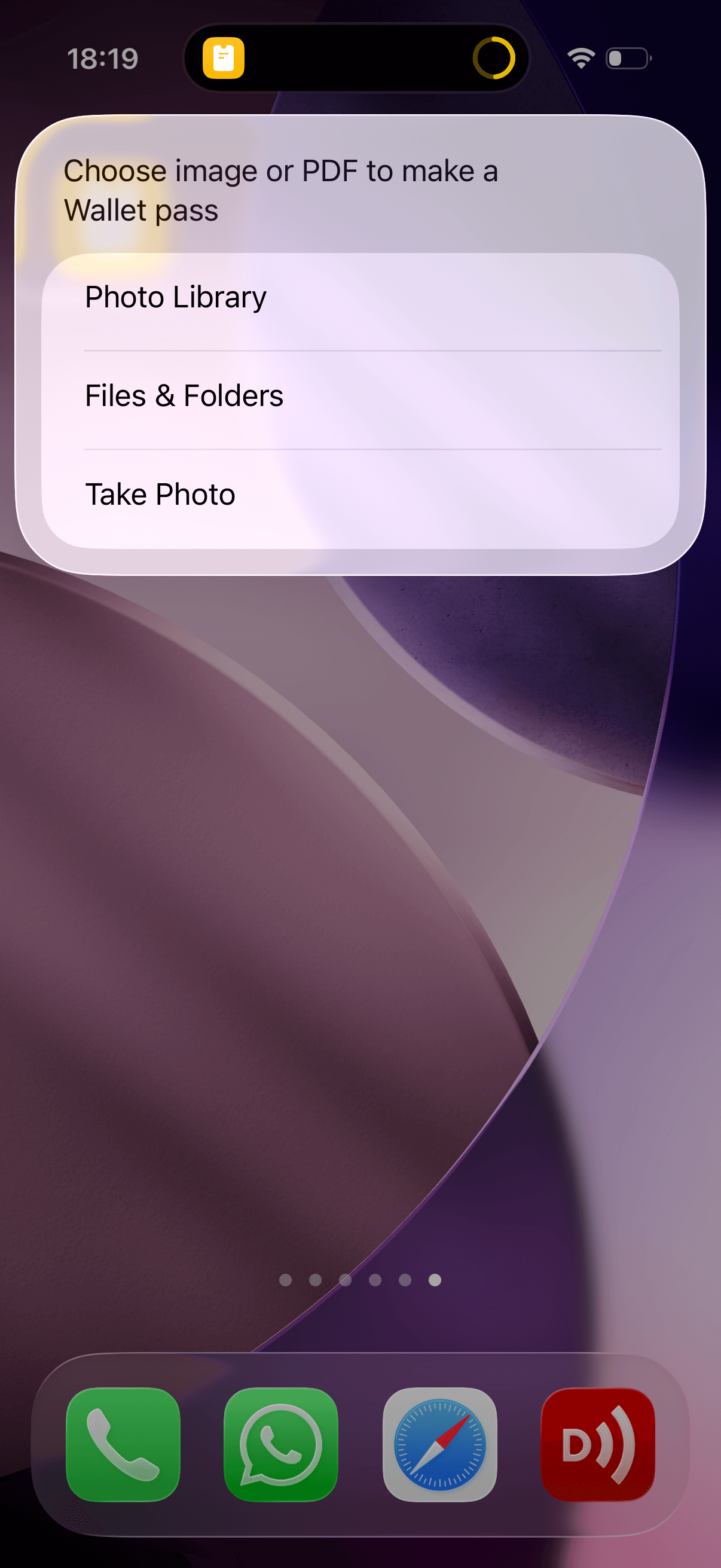
When you launch the shortcut, you'll see three options:
- Photo Library: Select an existing photo
- Files & Folders: Choose a file from your device
- Take Photo: Use your camera to capture a new image
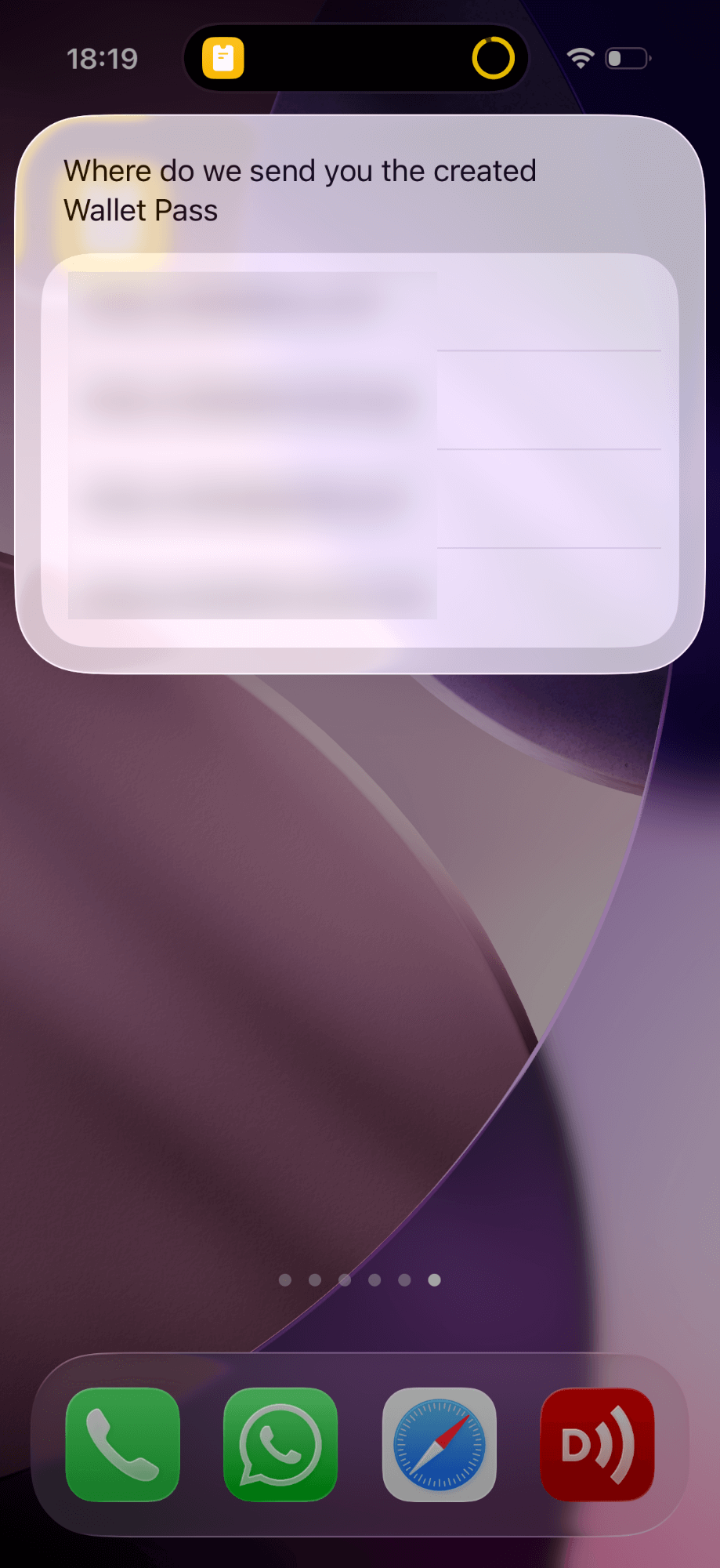
Select Email Address
Choose the email address where you want to receive your Apple Wallet pass. If you already have a PassDrop account, use the same email address so eligible shortcut passes can be matched back to your account. Important: You need to have email sending configured on your iPhone for the shortcut to work properly.
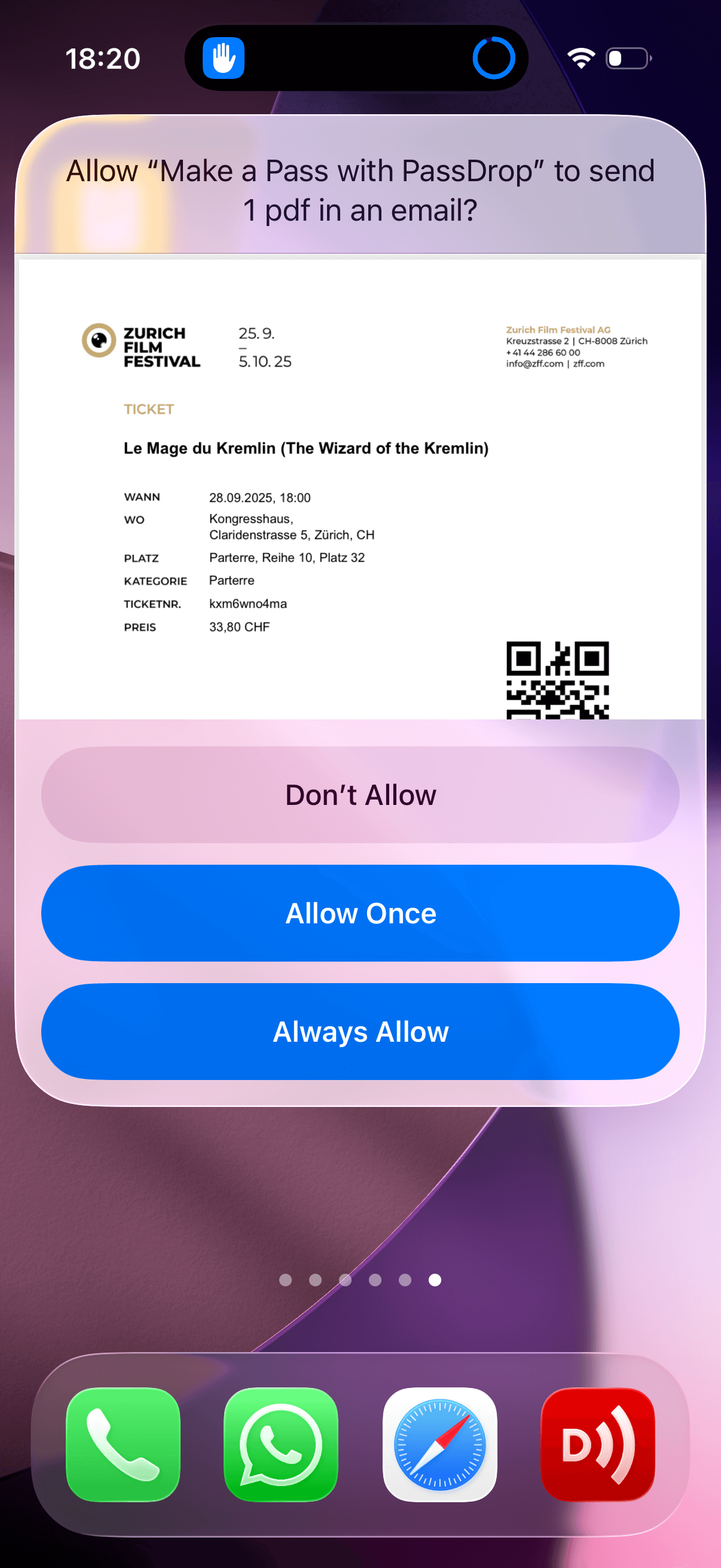
Grant Permissions
The first time you use the shortcut, you'll see a confirmation dialog.Tap "Always Allow" to avoid seeing this dialog again. If you tap "Don't Allow", the shortcut won't work and you'll need to either reset it or delete and re-download it.
Frequently Asked Questions
Do I need to install anything else?
No additional apps are required. The shortcut uses the built-in Shortcuts app that comes with iOS. Just download and run the shortcut to start converting tickets.
Is the shortcut free to use?
The shortcut works with the same PassDrop platform as the web app. Availability and usage depend on the current free-tier and Premium plan limits in effect at the time you use it.
What types of tickets work with the shortcut?
The shortcut works with the same types of content as our web service: flight tickets, event tickets, membership cards, QR codes, and photographed documents. Just make sure to take clear, well-lit photos for best results.
What if the shortcut doesn't work?
If you encounter any issues with the shortcut, try taking a clearer photo or use our web service instead. You can also contact us at support@passdrop.app for assistance.